♿ Accessibility Focus: This integration is designed primarily as a hands-free accessibility tool. By utilizing Claude's conversational and voice modes, visually impaired musicians can query tunes, search sessions, and plan sets completely hands-free.
⚖️ License Compliance: This tool is configured in compliance with the TheSession-data License terms. While the database terms feature a Prohibition on AI Use (which restricts general LLM training or non-accessible applications), they include an express Exception for Accessibility to enable voice assistance and hands-free tools. This integration is designed solely to support that exception.
♿ How to Use Speech & Voice Output (Hands-Free)
This integration is designed to be fully compatible with voice commands, auditory interfaces, and screen readers. Here is how visually impaired musicians can use this tool to query the database completely hands-free:
Using Claude's Native Voice Mode (Mobile App)
Open the official Claude app on your phone, start a voice conversation, and speak your queries. Claude will execute the tool calls, query our live database, and speak the results (such as tune structures, keys, and session locations) back to you in a natural spoken voice.
Using Claude.ai Web "Read Aloud" Mode
In the browser on your computer or phone, you can click the speaker icon ("Read Aloud") next to any response Claude provides. The assistant will read out the tune names, keys, ABC notes, or session locations using text-to-speech.
Using Desktop Screen Readers (VoiceOver, NVDA, JAWS)
Claude's text responses are structured using standard HTML semantic tags, allowing screen readers to easily announce search results, key signatures, and tune transcriptions.
💡 Speech Optimization Tip: When starting your voice chat, you can prompt Claude: "Format your responses for speech. Please describe keys, rhythms, and session names out loud, and summarize any transitions or setlist details verbally instead of presenting visual tables."
🛠️ Available MCP Tools & Capabilities
Once connected, Claude has access to 24 dedicated tools to query and analyze the Trad Tune Explorer database on your behalf. These tools are grouped into categories below:
♿ Screen Reader Navigation: This tool list is structured using descriptive subheadings. Visually impaired users can quickly jump between tool categories using heading navigation commands (e.g., pressing H in most screen readers).
🔍 Search & Tune Lookup
search_tunes— Search for traditional tunes by name or partial keyword. Use this first to resolve tune names to unique IDs.get_tune_details— Retrieve full metadata, rhythm, key, and ABC music notation for a specific tune setting.get_tune_notation_svg— Generate a sheet music rendering in SVG format (full or first system incipit).get_tune_notation_pdf— Generate a downloadable, high-quality vector sheet music PDF document.get_tune_recordings— Find commercial albums and artists who have recorded a specific tune.
💎 Repertoire & Tune Discovery
find_hidden_gems— Find high-quality, well-recorded tunes that have received low community/session exposure.find_forgotten_classics— Find historically significant, widely recorded tunes that are overlooked by today's Session community.find_most_recorded_tunes— Find tunes with the highest number of commercial recorded versions in the database.find_most_influential_tunes— Find cornerstones of the tradition with high overall influence across recordings, tunebooks, and sets.find_session_staples— Find tunes that appear most frequently in recorded session sets.find_most_versatile_tunes— Find tunes that connect naturally with the widest variety of other tunes (transition diversity).
📈 Transition & Set-Building Analytics
get_tune_transitions— Analyze setlists and recordings to find which tunes commonly precede or follow a specific tune.get_global_transitions— Get a site-wide leaderboard of the most popular tune-to-tune transitions.get_mode_transitions— Query the frequency of key/mode transitions (e.g. Major → Dorian) when building sets.get_set_signatures— Discover popular key and mode sequence patterns (e.g. D Major → G Major) across session sets.
📚 Collections, Repertoire & Setlists
get_collections— List famous historical traditional tune collections (like O'Neill's, Ceol Rince na hÉireann, etc.).get_collection_tunes— List all tunes transcribed inside a specific historical tune collection book.get_member_repertoire— Retrieve the tunebook (known tunes) and custom setlists created by a specific member.get_setlist_details— Fetch metadata, names, and ABC notation for a group of tunes in a custom setlist.search_members— Search for members/users of TheSession.org by username to resolve their member IDs.get_creator_leaderboard— Get a monthly leaderboard of the top set creators on TheSession.org.
🍻 Real-World Sessions, Events & Venues
get_upcoming_sessions— Find active, upcoming traditional Irish music sessions worldwide by place, town, or venue.get_upcoming_events— Query upcoming folk festivals, concerts, and workshops globally.get_venues— Search for pubs and venues that host live traditional music sessions.
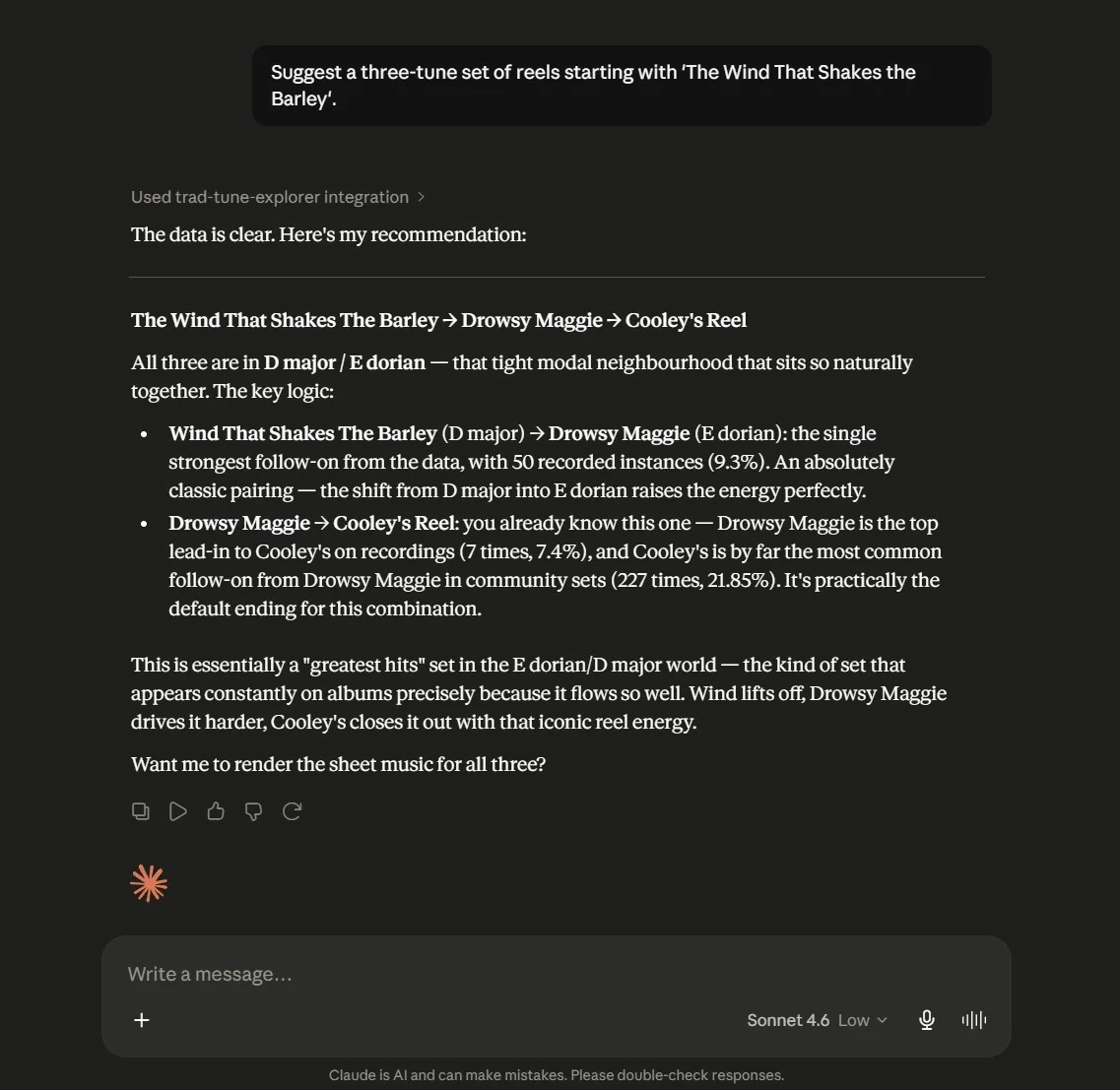
You can connect Claude (both on the Claude.ai website and the Claude Desktop app) directly to the Trad Tune Explorer database. Once connected, you can ask Claude about tune names, keys, rhythms, set building, tune transitions, upcoming sessions, festivals, and pub venues. Claude will query the live database and reply directly in your chat.
1. The Quick & Easy Way (Recommended)
This works on both the Claude.ai website and the Claude Desktop app. It takes less than a minute and doesn't require editing files.
Copy the Connector URL
Copy this remote server URL to your clipboard:
Open Connectors Settings
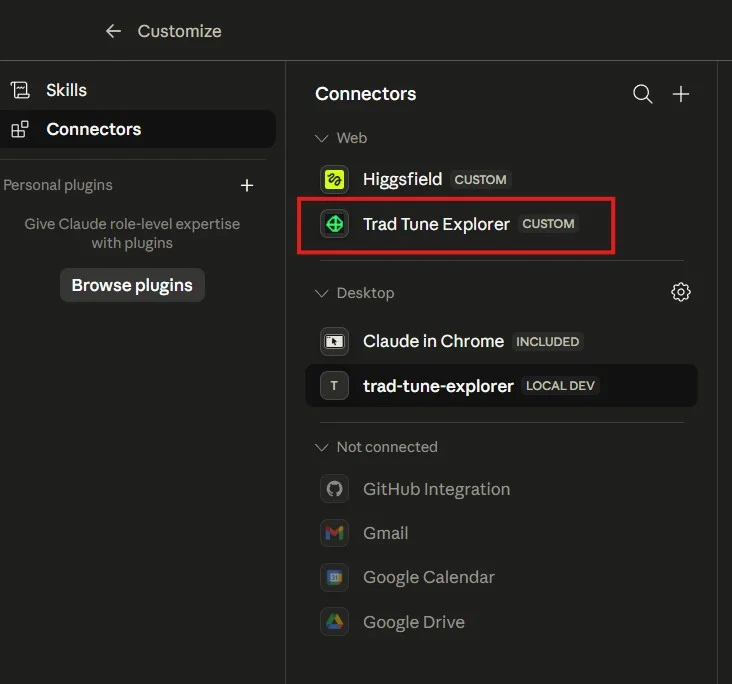
Click your profile icon in the bottom-left corner of Claude (on the web or in the desktop app), select Settings (or Customize), and click on the Connectors tab on the left sidebar.
Add Custom Connector
Click the + (Add) button next to the search bar in the Connectors panel and select Add custom connector.
Fill out the fields as follows:
- Name:
Trad Tune Explorer - URL: Paste the URL you copied in Step 1
(
https://thesession.tradtuneexplorer.com/mcp/sse)
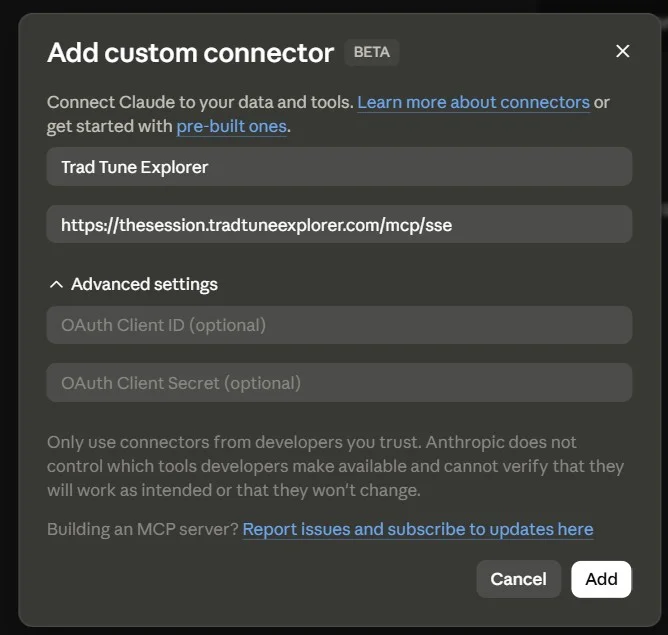
Save and Authorize
Click Add. Once added, you'll see Trad Tune Explorer under your active web connectors. When you start a new chat, make sure the connector is toggled on using the plug/plus menu in the chat bar!
2. Advanced Setup: Claude Desktop Configuration File
If you prefer to run the connector locally via Claude Desktop's configuration file (or if you are on a Claude Free tier plan and have already used your custom connector slot), follow these steps:
{
  "mcpServers": {
    "trad-tune-explorer": {
      "sse": {
        "url": "https://thesession.tradtuneexplorer.com/mcp/sse"
      }
    }
  }
}
Note for existing users: If you already have other servers configured, just add
"trad-tune-explorer" inside your existing "mcpServers" block. Don't forget to
separate entries with a comma.
Open the settings folder
Press the Windows Key + R on your keyboard to open the Run window. Copy and paste the path below, then press Enter:
Edit the configuration file
Look for a file named claude_desktop_config.json. Open it using a text editor (like
Notepad). If the file doesn't exist, create a new text document and name it exactly
claude_desktop_config.json.
Paste and Save
Paste the configuration code above into the file, save it, and then close the text editor.
Restart Claude
Close the Claude Desktop app completely and reopen it. You should see a small plug icon in the text input box, indicating that Claude has successfully connected to Trad Tune Explorer!
Open the settings folder
Open Finder, press Command + Shift + G on your keyboard, paste the path below, and press Enter:
Edit the configuration file
Look for the file named claude_desktop_config.json. Open it with a text editor (like
TextEdit). If the file does not exist, create a new file named
claude_desktop_config.json.
Paste and Save
Paste the configuration code above into the file, save it, and then close the editor.
Restart Claude
Fully quit the Claude Desktop app and restart it. Look for the small plug icon in the chat input bar to confirm that the connection is active.
3. Example Prompts to Try
Once connected, you can ask Claude questions like these. Click any category to filter the examples, and click a card to copy the prompt directly to your clipboard.
Do we have the sheet music or ABC notation for the tune 'Drowsy Maggie'?
What key or mode is the reel 'The Maid Behind the Bar' in?
I am playing the jig 'The Kesh'. What are some popular tunes that people play right after it in a set?
Suggest a three-tune set of reels starting with 'The Wind That Shakes the Barley'.
What tunes are commonly recorded in a set on albums along with 'Cooley's Reel'?
Are there any upcoming traditional music sessions happening in Edinburgh on a Wednesday?
Find pubs or venues that host live traditional music in Galway, Ireland.
Show me the tune list or tunebook for the member 'martinw'.
What setlists has member 'martinw' created on The Session?
Troubleshooting & FAQ
I don't see the plug icon or tool options in Claude. What did I do wrong?
If using the Custom Connectors method (Option 1), make sure you enabled the connector in your chat window by clicking the + or plug icon inside the chat bar. If using the Desktop configuration file (Option 2), make sure you closed Claude Desktop completely (from the system tray or quit menu) and reopened it, and verify that the JSON format is correct.
Can I use this on the Claude.ai website?
Yes! With Claude's new Custom Connectors settings, you can connect the Trad Tune Explorer database directly to the Claude.ai website (in addition to Claude Desktop). Simply follow the steps under Option 1 above.
Do I need to install Node.js, Git, or run code locally?
No! Because this is a cloud-hosted service utilizing Server Sent Events (SSE), all data processing and database queries are handled on our servers. You do not need to run or install anything on your local computer.